
RealCAD – RealCAD LT – LANDWorksCAD – ArborCAD
License Activation Procedure
Online Activation Method
Step 1: Start the Program
Double-click the program shortcut icon, usually located on your Desktop.
If a warning message appears, click Run anyway.
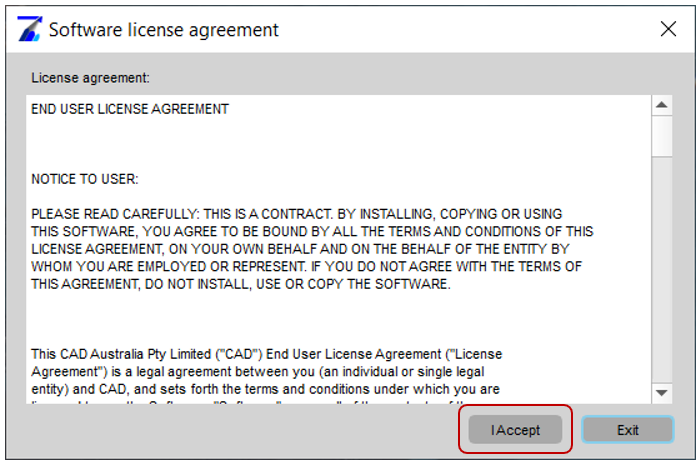
Step 2: Accept the License Agreement
The End User License Agreement may appear each time you start the software until your license is purchased and activated.
Click I Accept to continue.
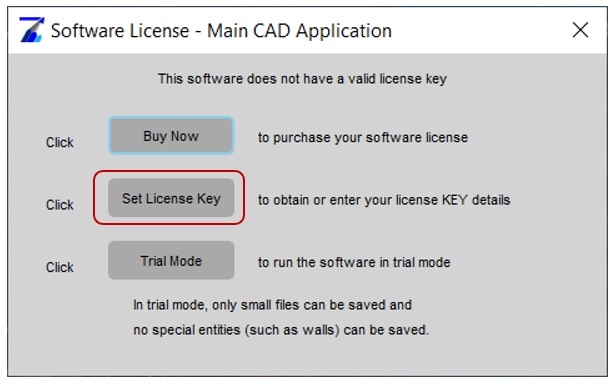
Step 3: Set License Key
In the software license dialog, click Set License Key.
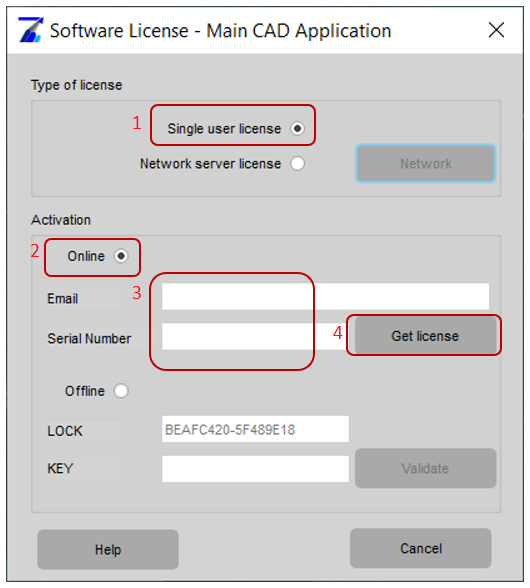
Step 4: Activate Online
In the license activation dialog, complete the following:
- Select Single user license.
- Select Online.
- Enter your Email and Serial Number.
- Click Get license.
If your computer is connected to the internet and your security settings are not blocking the connection, your license should be activated within a few seconds. A dialog confirming success will appear.
If Online Activation Does Not Work
If online activation fails, please use the offline activation method below.
Alternate Method: Setting Your License Key Offline
Use this method if your internet connection, firewall, or security settings prevent online activation.
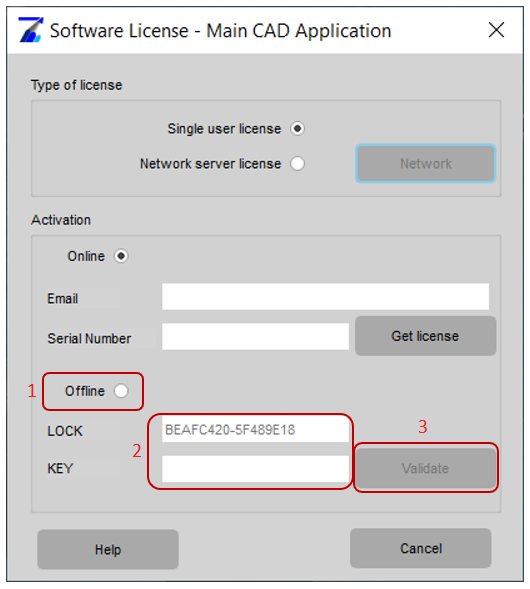
- Select Single user license.
- Select Offline.
- Copy the LOCK number.
- Email the LOCK number to support@cad.com.au.
- You will receive a matching activation KEY, (This is manually processed by the CAD team during work hours).
- Copy and paste the activation KEY into the KEY field.
- Click Validate.
Important Note
When pasting the activation key, make sure there are no extra spaces before or after the key.
While Waiting for Your Key
You may select Trial Mode to continue using the software while waiting for your activation key.
Warning
Do not select the Network button unless you are installing a network license.